Before you begin
- Audio CDs and data CDs containing MP3 files are different.
- Listen for glitches and missing passages after extraction.
- Choose original-quality preservation separately from smaller listening copies.
Identify what Windows is showing
| Disc type | What needs saving |
|---|---|
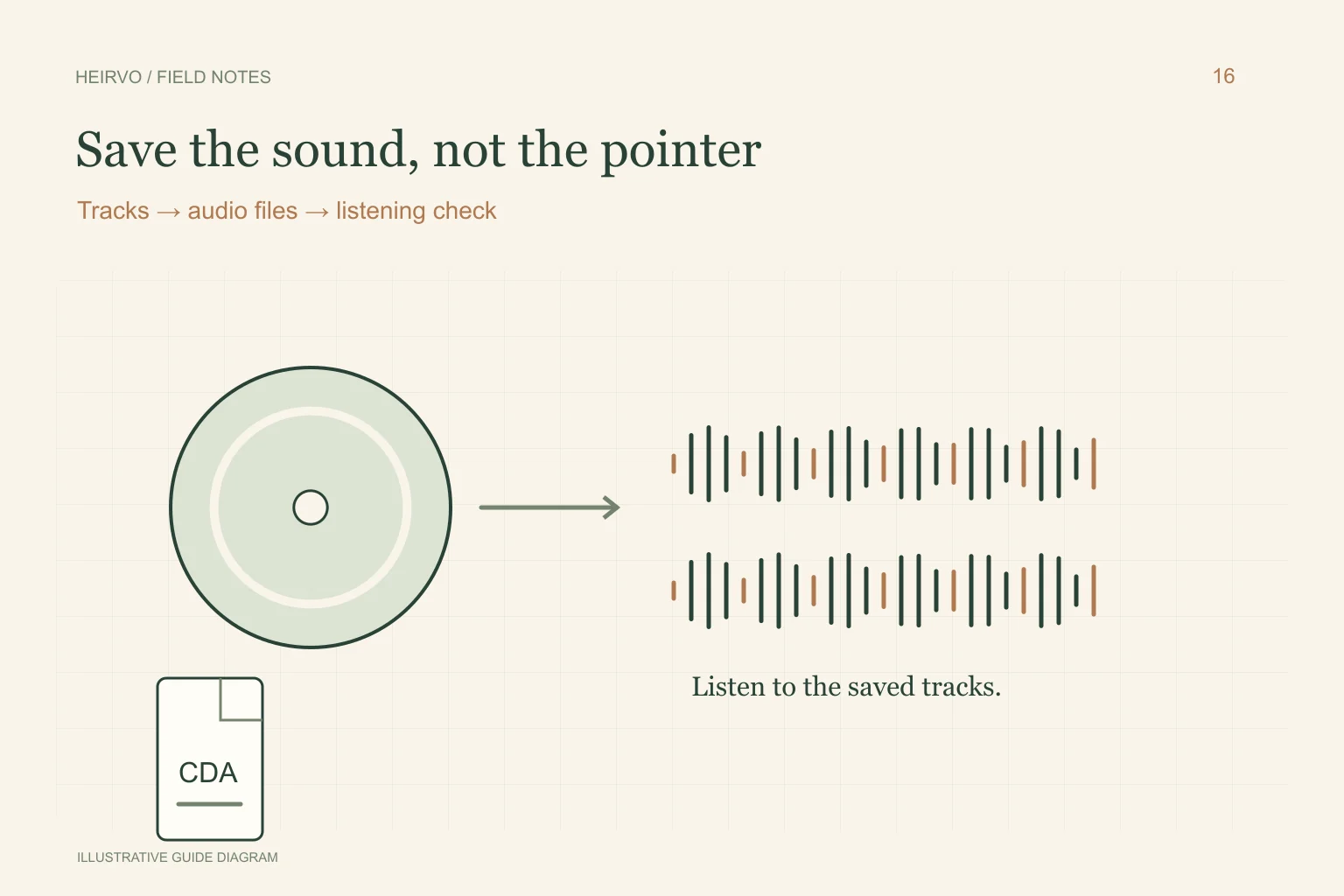
| Audio CD with CDA entries | The audio tracks through an appropriate ripping application. |
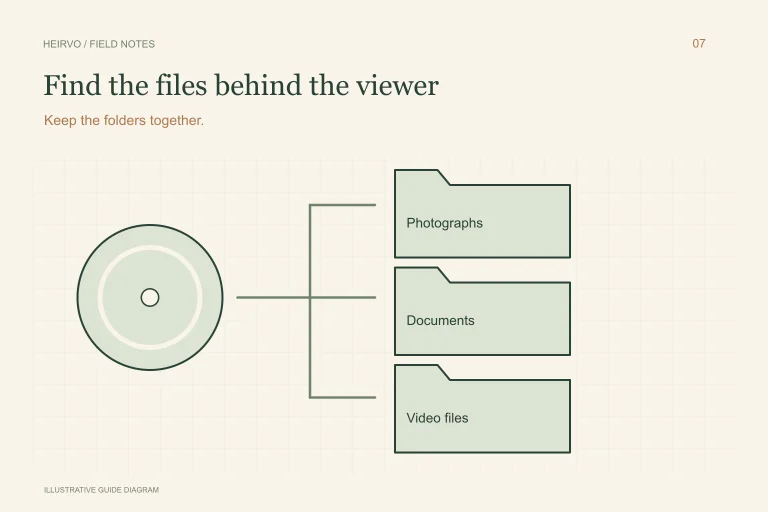
| Data CD with MP3/WAV files | The actual files, followed by playback verification. |
| Disc containing both data and audio | A tool that understands the relevant layout; do not assume one copy operation covers everything. |
Try a documented ripping workflow
Microsoft documents audio-CD ripping in Windows Media Player, with available format choices. Review the settings before copying and preserve an appropriate high-quality source version where possible. Internet-based album information is separate from recovering the sound itself.
Check whether the disc is physically safe to use. Light removable contamination and structural damage are different problems; do not spin cracked, separating or warped media. Use suitable handling guidance rather than aggressive polishing or repeated identical attempts.
When a track will not extract cleanly
Record which track and passage fails. Test the drive with a known-good compatible audio CD and keep any useful output from the damaged disc. Another appropriate drive or extraction workflow may give a different result, but no universal success rate is established.
Heirvo has audio-related components, but the current recorded physical acceptance is not a broad damaged-audio-CD certification. Check the release/testing notes and ask about the exact workflow before paying. Do not infer complete support merely because a drive detects the disc.
Listen to the saved tracks
Play the actual saved files, including the sections where extraction struggled. Listen for clicks, silence, repeated audio and unexpected endings. Compare the track list and durations. A valid file and a smooth progress bar are not the same as an error-free recording.
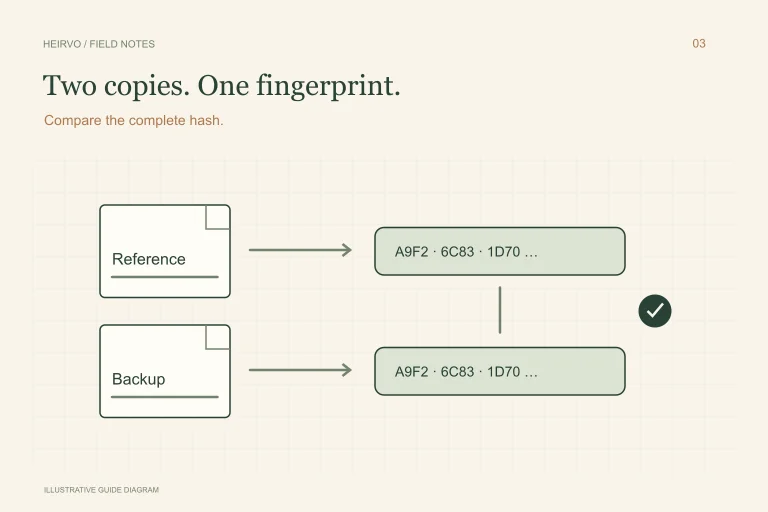
Keep track order and useful original metadata, and make a second verified copy. A checksum can confirm that the backup matches the saved file; it cannot tell whether a glitch was already present in that file. Use music and other recordings only in ways you have permission to use.
A few more answers
Common questions
Why do copied CDA files not play away from the disc?
They are not independent copies of the full sound. Use an audio-CD ripping workflow to save actual audio files.
Does a matching hash prove the music has no glitches?
No. It checks matching file contents. You still need to listen to the saved reference.
Sources & further reading
Technical guidance from the original publishers. Always use the instructions for your exact device.