Before you begin
- Cancel before changing a disc you want to preserve.
- A missing folder listing does not prove that nothing was recorded.
- Avoid formatting, erasing or writing a new session as a recovery step.
Cancel first, then check what you have
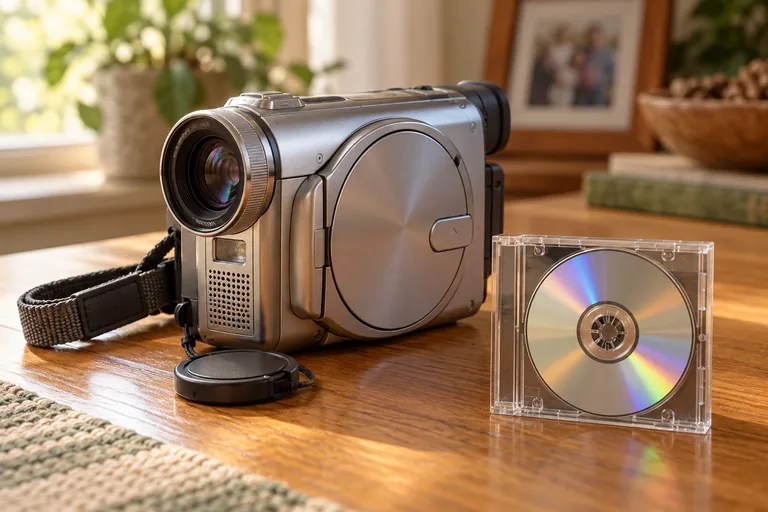
Close the prompt and confirm which drive letter it refers to. Remove any unrelated removable storage if that makes identification easier. Keep the original disc and its case together. A useful first note is simply: what device made the recording, what disc type it is, and the exact wording Windows displayed.
Formatting and erasing can change or destroy existing content on writable media. A recorded write-once DVD does not behave like an ordinary rewritable USB drive, but neither a format prompt nor an empty-looking folder is a good reason to write something new to it. The conservative choice is to preserve the source while investigating.
Several different problems can look like a blank disc
These are possibilities, not a diagnosis of your disc. Check a known-good compatible disc in the same drive. If that also fails, focus on the drive or Windows detection. If it works, keep investigating the original recording without changing it.
- The drive cannot reliably read the information that describes the recorded files.
- The recording was not completed in a way the computer or player understands.
- The drive or software does not support the particular disc or recording mode.
- The media is genuinely blank, or a different disc was placed in the case.
Finalise does not mean format
Some DVD recorders and camcorders use a finalisation process to make a recording playable in other equipment. Formatting prepares suitable writable media for use; erasing removes recorded material. Those labels are not interchangeable.
If you still have the original recorder, consult its exact manual before selecting an operation. Do not assume another model's steps apply. When the recording is irreplaceable or the disc is unstable, seek advice before any write operation. Repeatedly trying to finish a recording is not the same as a read-only recovery scan.
Try preserving what the drive can read
For a physically intact supported disc, Heirvo can scan readable areas without changing the original. Preview the result in the app before deciding whether a save license is worthwhile. It cannot promise to recreate unreadable material or repair every recording layout.
Use a different folder on your computer for recovery output and leave sufficient space for working files. If a useful preview appears, check the particular scenes you care about. A readable menu or the beginning of a video does not establish that the whole recording survived.
Stop if the disc is physically unsafe
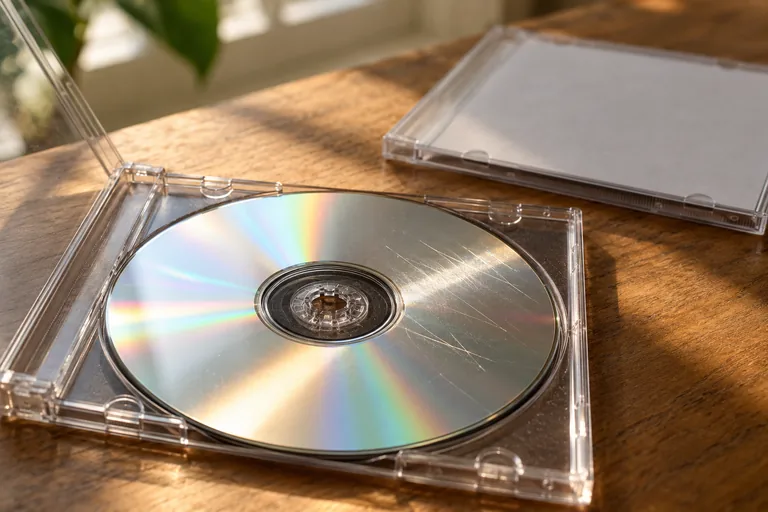
Do not insert a cracked, badly warped or separating disc into a drive. Keep it safely in a suitable case and seek specialist advice. Software cannot make a structurally damaged disc safe to spin.
If you already accepted a prompt, stop further writing and record what happened. Whether anything useful remains depends on the disc and the operation that actually ran. Do not assume either that everything is lost or that recovery is guaranteed.
A few more answers
Common questions
Does Windows calling a DVD blank prove that it is empty?
No. It can also mean the current drive or software cannot interpret the recorded contents. Test the drive and check the recording format without writing to the disc.
Will Heirvo format the original disc?
No. The recovery workflow reads the original and saves available data to the chosen computer storage. It does not make the disc writable or finalise it.
Sources & further reading
Technical guidance from the original publishers. Always use the instructions for your exact device.