Before you begin
- A mini DVD is a disc; MiniDV is a tape format.
- Small discs need explicit drive-size compatibility.
- Finalising and erasing a disc are different operations.
Check that you have a mini DVD
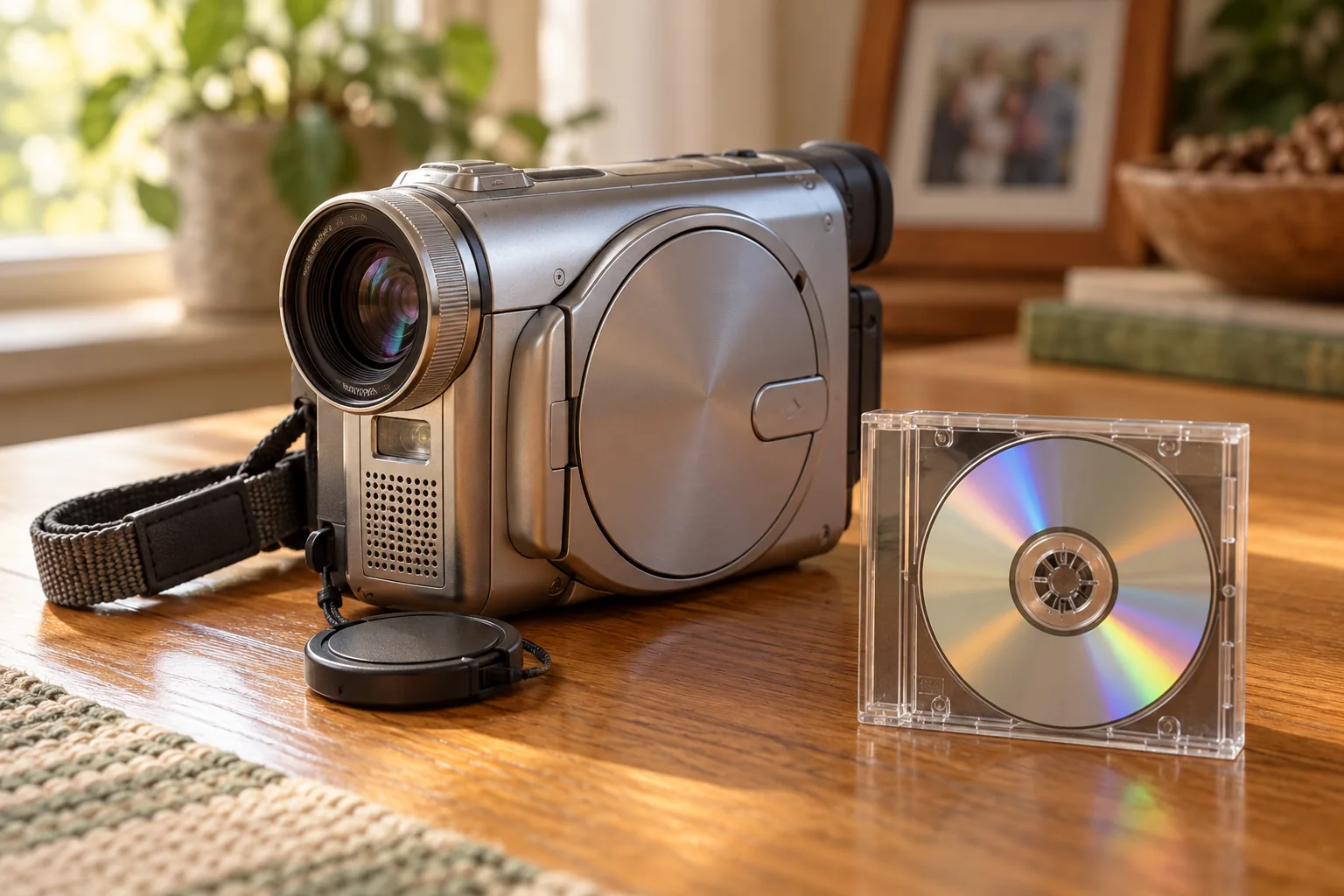
Mini DVD usually means a small, round optical disc, often 8 cm across, used by some DVD camcorders. MiniDV is a rectangular tape cassette. The names look similar, but a DVD drive will not read a tape, and an optical-disc recovery app is not a tape-capture device.
Write down the camcorder model and the markings already on the disc or its case. Labels such as DVD-R, DVD-RW and DVD+RW can affect the available recording and finalisation options. Do not add a sticky label or write over the readable underside while identifying it.
Use a drive designed for the smaller disc
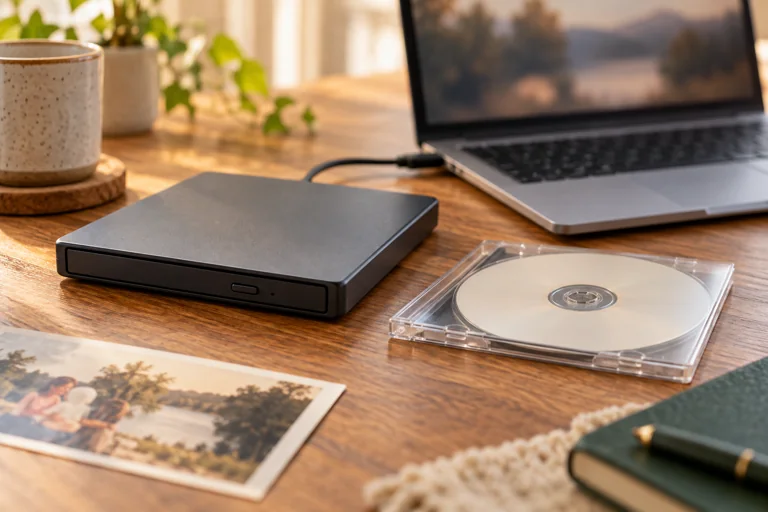
Sony's camcorder guidance describes using a horizontal tray with a recess that accommodates an 8 cm disc. Check your own drive's manual rather than assuming every USB DVD drive accepts the smaller size. Avoid unsupported slot-loading drives and do not improvise an adapter.
A USB cable on the camcorder does not automatically mean the computer can read every recording through it. Some older models depend on specific transfer modes or legacy software. Use the instructions for your exact model; do not buy a cable solely because it physically fits.
Find out whether finalisation is needed
Some camcorder DVDs need a finalisation step before other equipment can play them. Requirements vary by disc type and recording mode. If the original camcorder plays the recording, consult its manual about the correct procedure and any power requirements before attempting that step.
Finalisation is a write operation. For a damaged, unstable or irreplaceable disc, it is reasonable to seek specialist advice before writing anything. If finalisation fails, do not switch to Format or Erase in the hope that it means the same thing. Heirvo does not promise to finalise every camcorder disc or recover every recording mode.
Copy a readable recording to the computer
Keep the copied original folders while you make a viewing copy. If Windows stops halfway, write down the copying error before trying again.
- Place a physically intact disc in a compatible drive according to the drive's instructions.
- If the computer reads the contents, copy the complete recording folder structure to a new folder on your computer. Give it a name that identifies the camcorder disc.
- Open the copied source in a compatible player or converter. Different recording modes can use different structures, so do not assume every mini DVD is ordinary DVD-Video.
- Make a separate viewing copy if needed, then check its duration, picture and sound against the original. Preserve the original files and disc.
If the disc will not open
Check a known-good compatible disc in the same drive. If the drive works but this recording does not, the cause could include damage, an incomplete recording session or format compatibility. A normal player failing to open it does not tell you which cause applies.
Heirvo can be tried with supported personal optical media detected by a compatible drive. Use the free scan and in-app preview to assess the actual result. Mini-DVD recording modes and hardware are not all certified. Ask support about your disc if you are unsure whether the setup is supported, or use the download link below to check the free Windows preview. Paid licenses are awaiting store approval.
A few more answers
Common questions
Can I put a mini DVD into any laptop drive?
No. Confirm that the drive supports 8 cm media. Do not feed a small disc into a slot-loading drive unless the manufacturer explicitly supports it.
Can I transfer MiniDV tapes with this method?
No. MiniDV is a tape format and needs a suitable tape playback and capture workflow. This guide concerns small optical camcorder DVDs.
Sources & further reading
Technical guidance from the original publishers. Always use the instructions for your exact device.