Before you begin
- Keep the original image and any recovery logs together.
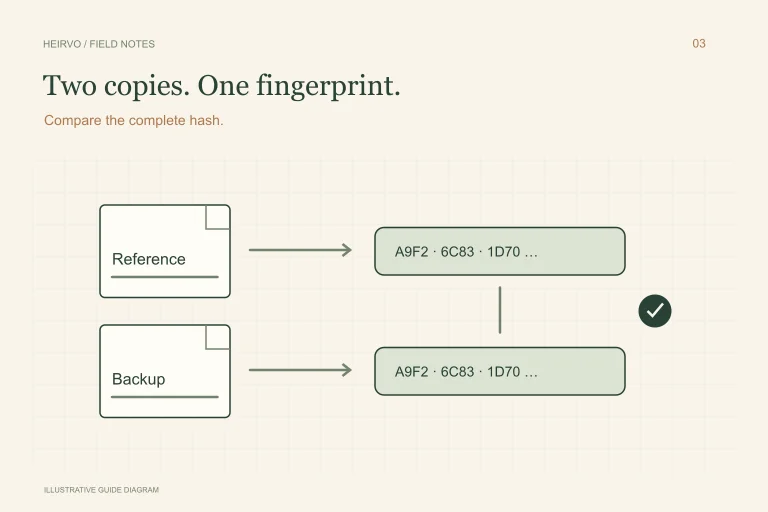
- A matching checksum verifies a copy, not the quality of the original recovery.
- Heirvo is not advertised here as a general-purpose repair tool for arbitrary ISO files.
Make a working copy before trying a repair
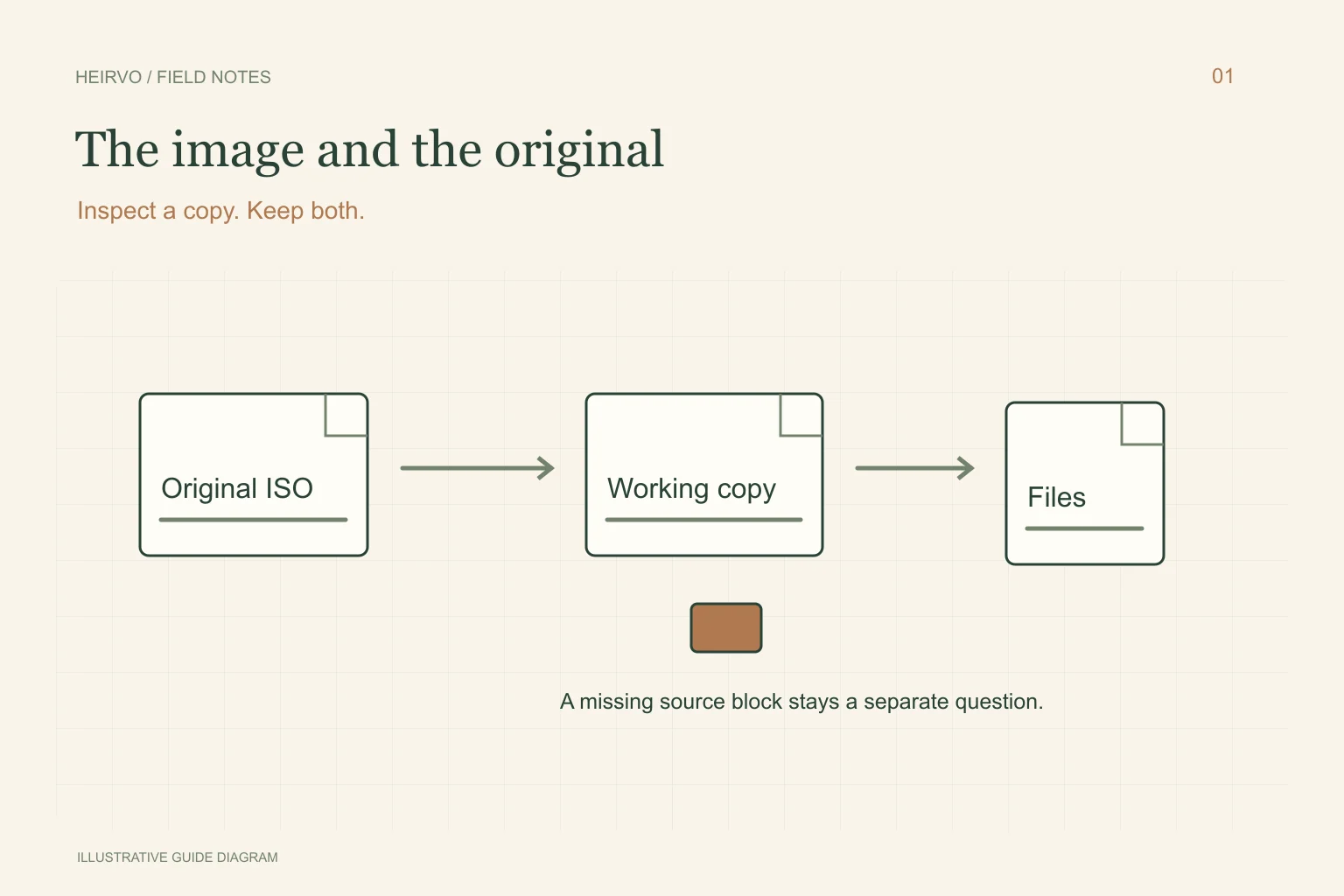
Copy the ISO to a separate working folder and leave the original alone. Record its file size, where it came from and any error shown. Keep a second copy on different storage when possible. If the drive holding the only copy is itself failing, stop repeated reads and seek storage-recovery advice first.
Avoid utilities that promise to repair the only image in place. Keep associated log files and sector maps if the image came from a recovery session. Those records may explain which passages were unreadable; the ISO filename alone cannot tell you.
Separate three different problems
| What you observe | What it can mean | Useful next step |
|---|---|---|
| A download or copy has a different size or hash | The file may be incomplete or changed | Obtain another complete copy from the trusted source. |
| Windows cannot mount it, but an extractor lists files | The mounting tool may not handle its layout | Extract selected files to another folder and inspect them. |
| The image was made from an unreadable disc | Some source bytes may be missing | Keep the partial image and investigate another read of the original. |
Try opening or extracting the copy
Windows supports mounting ISO images; Microsoft documents ISO mounting as read-only. A successful mount lets you inspect the visible folders, but it does not verify every file. A failed mount can also reflect a permissions or format problem rather than universal data loss.
An image-aware tool such as IsoBuster can inspect supported image layouts and extract to a separate destination. Check its current license terms before relying on a particular extraction feature. Test the recordings you care about, including sound and later passages, instead of treating a directory listing as a complete recovery.
If the original disc still exists
For a structurally intact supported personal disc, another compatible drive or recovery attempt may read areas the first attempt missed. Preserve both attempts and their logs; do not overwrite the first result to make room. Software cannot promise to reconstruct physically missing or permanently unreadable data.
Heirvo’s documented workflow attempts recovery from supported optical discs and previews readable content. We have not verified a released workflow for repairing arbitrary ISO files in Heirvo. Disc recovery should not be treated as a general ISO-repair feature. Check current testing and release status before choosing a workflow.
Check the result before calling it recovered
Open extracted photographs at full size. For video, check the beginning, middle and end, listen to dialogue, and compare the duration with the recording you expected. If a file is incomplete, keep it clearly labelled as partial. Converting a broken recording to MP4 may make a viewing copy, but does not prove missing scenes were restored.
A few more answers
Common questions
Will renaming an ISO to MP4 fix the recording?
No. An ISO is a disc image, not an MP4 movie. Extract or open the supported contents first; renaming does not convert or repair them.
Can a checksum tell me which missing scenes to rebuild?
No. It can compare file contents with a known reference. It does not contain a backup of missing video or identify the meaning of the scenes.
Sources & further reading
Technical guidance from the original publishers. Always use the instructions for your exact device.